Screen share stuck on “connecting”? Does the same session work at home but not at the office or hotel? The network path may be the reason. These three checks help you tell a direct-connection problem from a device or permission problem. None requires an install.
What “blocked P2P” looks like
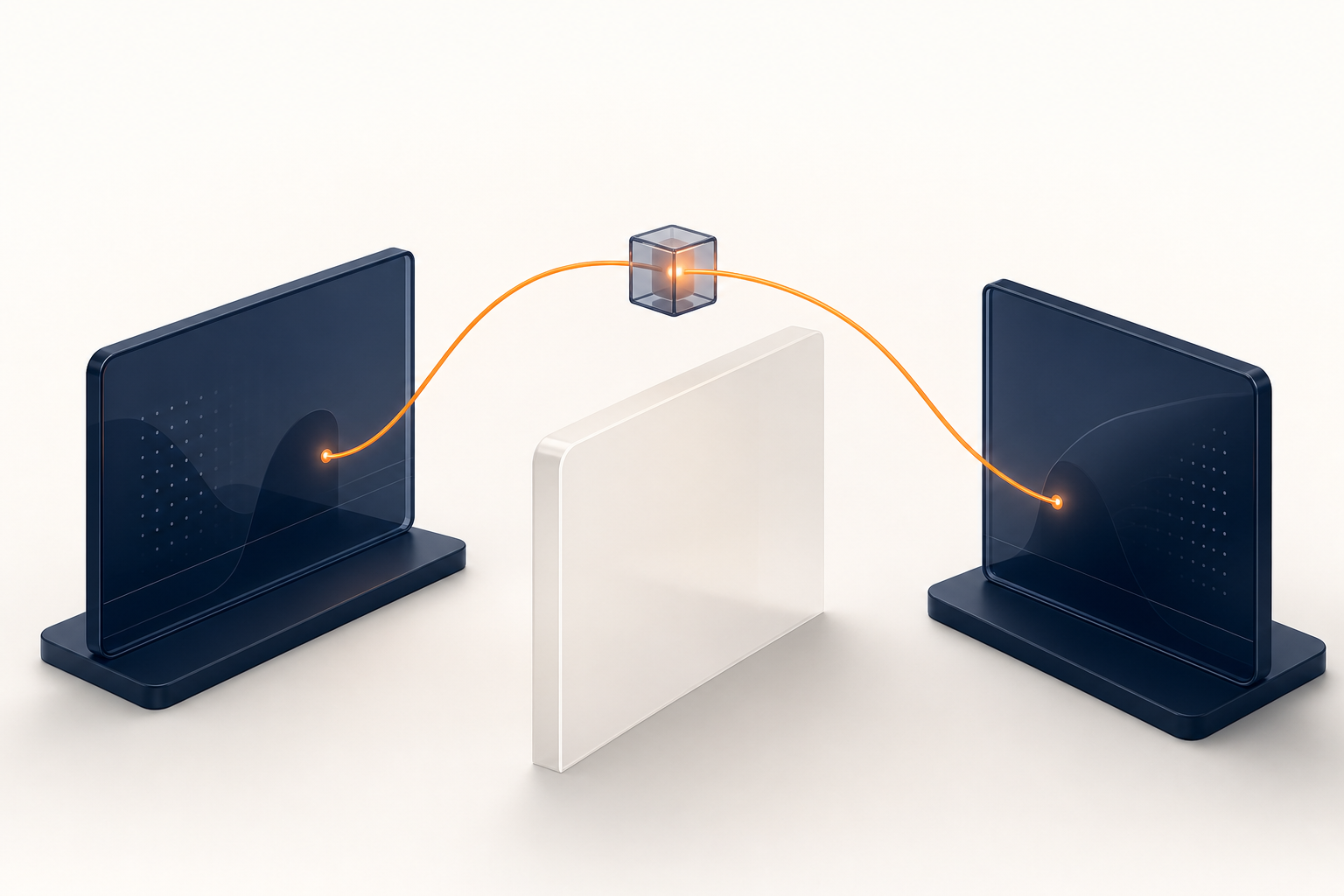
Linkside uses WebRTC and prefers a direct browser-to-browser media path. Each browser gathers possible network addresses, then ICE tests pairs of them and prefers a direct route over a relayed one. If no direct pair works, the session needs a TURN relay. Without a reachable relay, it cannot establish a media path.
That can look like a long “connecting” state or a session that works on one network but not another. Neither symptom proves that one particular network is responsible, so start with a real two-browser test.
Test 1: a live room test
The most useful first test is an actual connection between the two networks you care about.
- Create a room on the machine that will share (sharing belongs to the room’s creator).
- Join from a second device on a different network. A phone on cellular data is a convenient option. This tests that specific pair of networks; two devices on the same Wi-Fi do not test the path across the internet.
- Once the guest has joined, select Pick what to share on the host and choose a harmless tab or window in the browser picker.
- Wait for the screen to connect, then open Connection details from the session menu. A joined room alone has not tested the media route.
The Connection row says “Direct peer-to-peer” or “Relayed through server”. The Network path row adds context: “Both behind NAT, connected directly” is a successful direct connection, while “Routed through a relay server” means the direct path between these two browsers failed and Linkside used TURN instead.
A relayed result does not identify the guilty network by itself. The other endpoint, or the combination of NATs and firewall rules at both ends, may be responsible. Linkside gets the result from the browser’s WebRTC statistics and classifies the candidate pair that was actually selected.
For a support ticket, choose Show advanced diagnostics, then Copy diagnostics. The snapshot includes technical session identifiers, connection states, transport types, browser details, and the signaling URL. Review it before sending it outside your organisation.
How to read the result
WebRTC’s candidate types are the diagnostic vocabulary:
| Candidate type | Where it comes from | What its presence tells you |
|---|---|---|
host |
Your machine’s local network interfaces | A local candidate exists; no internet verdict yet |
srflx |
A public-facing address discovered via STUN | The browser reached STUN and learned an address |
prflx |
An address discovered from the other browser | ICE connectivity checks discovered another path |
relay |
An address allocated on a TURN relay | The relay fallback is reachable |
In Linkside’s connection details, a selected pair with host, srflx, or prflx on both ends is direct. If either selected candidate is relay, the media is going through TURN. Merely gathering a candidate is not the same as selecting it for a working connection.
Test 2: the Trickle ICE candidate test
The WebRTC project’s Trickle ICE page checks candidate gathering without needing a second device. It is a useful reachability check, not a complete P2P verdict: it cannot prove that a direct path to an arbitrary peer will work.
Enter a STUN server that Linkside uses, such as stun:stun.l.google.com:19302, gather candidates, and look for a row whose type is srflx. If it appears, that STUN server was reachable and your browser discovered a public-facing address. This still does not rule out strict NAT behaviour or a firewall that blocks connectivity checks to the other browser.
If no srflx candidate appears, repeat the test with stun:stun.cloudflare.com:3478. Failing to gather one from either server is evidence that STUN traffic may be blocked or otherwise unavailable on that network, but it is not proof on its own. A relay candidate requires TURN credentials, so its absence in a STUN-only test is expected. And if a host row contains a name ending in .local, do not mistake that for an error: browsers may use a temporary mDNS name instead of exposing a local IP address.
Test 3: your browser’s built-in diagnostics
When IT or support needs evidence, use the diagnostics built into your browser.
- In Chrome, type
chrome://webrtc-internalsinto a new tab before starting the session. Its Create Dump section can download the PeerConnection updates and statistics. Google’s WebRTC troubleshooting page explains the workflow. - In Firefox, open
about:webrtc. It shows connection parameters, RTP statistics, and a transport log. Copy Report exports the statistics as JSON; Mozilla documents the details in its WebRTC debugging guide.
Reproduce the failure, save the report, and send it only to an administrator or support contact you trust.
Why networks block P2P
One common obstacle is strict NAT behaviour. RFC 4787 calls it address-and-port-dependent mapping; it is often described as symmetric NAT. The public mapping changes with the destination address and port. When both browsers sit behind NATs that behave this way, the address discovered through STUN is not enough for hole punching, so the connection needs a relay. The STUN vs TURN explanation covers that process in more detail.
Another is firewall policy. Some enterprise networks do not permit direct UDP traffic between internal clients and external addresses. ICE over TCP and TURN provide alternatives for networks where UDP communication is restricted.
What to do when P2P is blocked
First, let the relay do its job. When a free Linkside room cannot establish a direct path, it gets a five-minute encrypted relay trial; a licence unlocks unlimited relay use. Relayed does not mean readable: the media remains encrypted in transit, and the relay forwards packets it cannot decrypt. TURN supports TCP and TLS as well as UDP, giving browsers another route when direct UDP is unavailable.
Second, change one network and repeat the room test. Keep the remote device on the same connection, but move the first device from office Wi-Fi to a phone hotspot. If the selected path changes from relayed to direct, you have strong evidence that the office network is the difference.
Third, describe what you actually observed. If Trickle ICE failed to gather srflx candidates from both STUN servers, tell IT that outbound STUN traffic may be blocked. If Trickle ICE gathered srflx but the live room still used a relay, say that STUN was reachable but direct ICE checks did not produce a working path. Attach the browser report.
Before you blame the network
A screen share can also fail because of a camera, microphone, or screen-capture permission on the device. Rule that out with Linkside’s free gear check at /test. It checks the camera, microphone level, and screen-share permission in your browser; nothing is uploaded or recorded. It checks your gear, not network reachability. Use the two-device room test for the network path.
Peer-to-peer-first is a preference, not a promise that every network will allow a direct connection. Linkside tries the direct path first, falls back to an encrypted relay when necessary, and shows which path the browsers selected. These tests let you verify that result for the networks you use.